By Sona Dubey | Founder of ArtbySona
When I first started digital art, I made one big mistake.
I drew everything on a single layer.
And when I tried to change the color… the entire drawing got ruined.
That’s when I understood the real power of layers.
If you’re a beginner feeling confused about layers, this guide will make everything simple — step by step.
What Are Layers in Digital Art?
Alt text suggestions for SEO & accessibility:
- “Digital art layers panel showing sketch, line art and color layers”
- “Transparent sheet analogy explaining digital art layers”
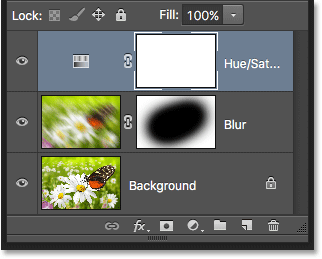
- “Beginner view of Photoshop layer panel”
- “Step-by-step digital painting layer breakdown diagram”
Simple Explanation
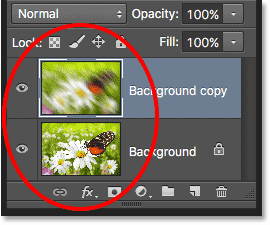
Think of layers like transparent sheets stacked on top of each other.
Each sheet holds different parts of your artwork:
- Sketch
- Line art
- Colors
- Shadows
- Highlights
You can edit one without disturbing the others.
That’s the biggest advantage of digital art.
My Personal Layer Workflow (From ArtbySona Studio)
Here’s the exact method I use for my illustrations:
Step 1 – Rough Sketch
Messy drawing. No pressure.
Step 2 – Clean Line Art
New layer above sketch.
Lower sketch opacity to 40%.
Step 3 – Base Colors
Layer placed below line art.
Flat color fills only.
Step 4 – Shadows
New layer above colors.
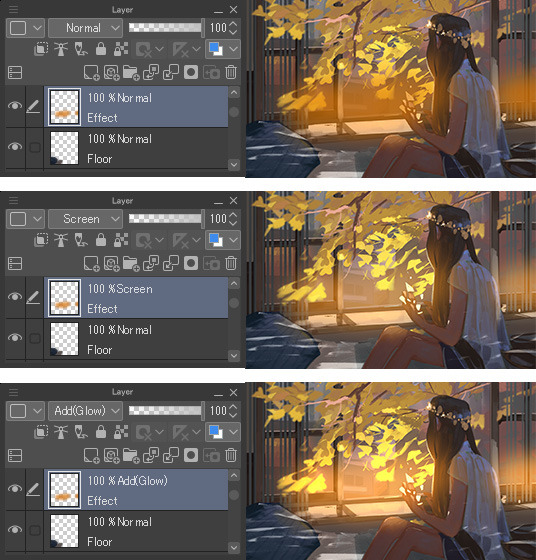
Blending mode: Multiply.
Step 5 – Highlights
New layer.
Blending mode: Screen or Add.
This 5-step structure keeps everything clean and professional.
Understanding Layer Order (Very Important)

Alt text suggestions:
- “Correct layer stacking order in digital painting”
- “Example of clipping mask for clean shading”
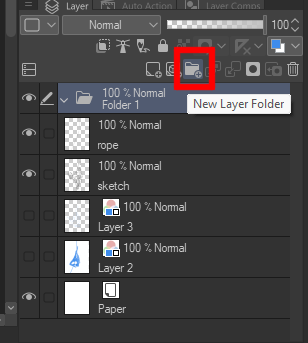
- “Grouped layers folder in digital art software”
- “Digital shading layer example diagram”
Correct Layer Hierarchy
- Highlights
- Shadows
- Base Colors
- Line Art
- Sketch
- Background
If something disappears, check:
✔ Is the layer hidden?
✔ Is opacity reduced?
✔ Is it under another layer?
Common Beginner Mistakes (Visual Guide)


Alt text suggestions:
- “Messy layer panel in digital art”
- “Too many layers slowing down artwork”
- “Single layer digital drawing mistake example”
- “Organized vs unorganized digital layers comparison”
Mistake 1: Drawing Everything on One Layer
Hard to edit later.
Mistake 2: Too Many Random Layers
Confusing and messy.
Mistake 3: Not Naming Layers
You’ll waste time searching.
Mistake 4: Ignoring Blending Modes
You miss depth and realism.
When I was starting, I used 40+ layers for one simple drawing.
Now I use 6–8 organized layers — and my workflow is much faster.
Important Terms Explained (Beginner Glossary)
Layer
A transparent editable sheet inside your artwork.
Opacity
Controls visibility.
100% = fully visible
0% = invisible
Blending Modes
How layers interact.
Available in tools like:
- Adobe Photoshop
- Procreate
- Clip Studio Paint
Common modes:
- Multiply → Shadows
- Screen → Highlights
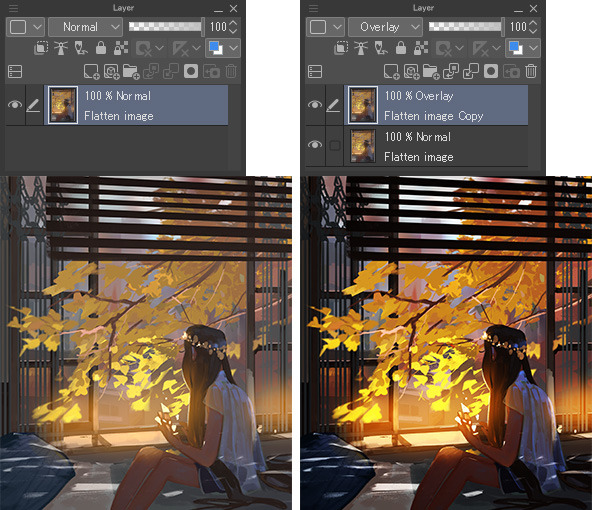
- Overlay → Contrast boost
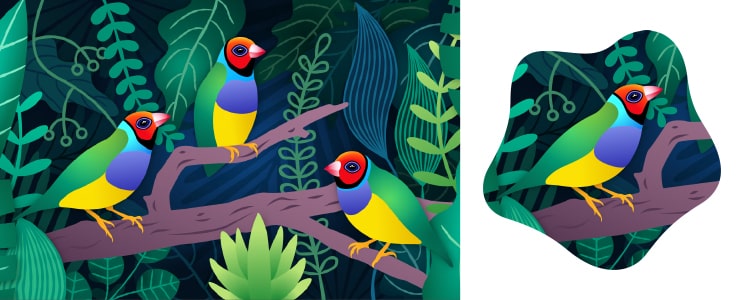
Clipping Mask
Locks color inside a base shape.
Prevents paint from going outside edges.
Beginner Troubleshooting Section (Very Helpful)
❓ My color is not visible.
Check:
- Is it under line art?
- Is opacity 0%?
- Is blending mode incorrect?
❓ My artwork looks flat.
Try:
- Adding shadow layer (Multiply)
- Adding highlight layer (Screen)
❓ My file is lagging.
Reduce:
- Extra unused layers
- Large canvas size
❓ I can’t paint inside the shape.
Use:
- Clipping mask
- Or lock transparency
How to Practice Layers Effectively
Try these exercises:
✔ Draw a fruit using 4 layers
✔ Create a face using 5 layers
✔ Practice one blending mode daily
✔ Organize layers into folders
Consistency builds confidence.
SEO & Accessibility Reminder (Important for Blog)
For every image:
Add descriptive alt text like:
- “Digital art beginner layer tutorial step by step”
- “Example of blending mode multiply for shading”
- “Clipping mask shading example in digital art”
This improves:
✔ Search rankings
✔ Accessibility
✔ Google AdSense approval strength
Let’s Make This Interactive 💬
I’d love to know:
- How many layers do you usually use?
- Do you struggle more with blending modes or clipping masks?
- Which software are you using?
Share your favorite technique in the comments.
Your tip might help another beginner artist.
Final Thoughts from Sona Dubey
Layers are not complicated.
They are your creative safety system.
Once you understand them, digital art feels controlled, organized, and powerful.
At ArtbySona, I believe every beginner can become confident —
if they understand the basics properly.
Keep practicing.
Stay patient.
And enjoy the process.
— Sona Dubey
Artist | ArtbySona 🎨
Also Read:
- Best Free Digital Art Brushes in 2026
- How to Build a Digital Art Portfolio
- Digital Art vs Traditional Art – 2026
- 20 Daily Digital Drawing Prompts
- How to Improve Digital Art Skills Faster

Sona Dubey is a digital artist with 5+ years of experience in illustration and devotional art. She is the founder of ArtBySona where she shares digital art tutorials, drawing exercises, and beginner-friendly guides to help artists improve their skills.